
Veo 3.1 Prompting Guide: Mastering Video Generation
1. The Anatomy of a Perfect Prompt
To consistently generate high-quality video, you must provide the model with a clear blueprint. Unlike older models that guess your intent, Veo 3.1 follows instructions significantly better when they are structured logically.
A robust prompt is built on four non-negotiable pillars:
Subject (Who/What)
Define the focal point clearly. Is it a person, an object, an animal, or an abstract shape?
- Weak: "A man."
- Strong: "A man in worn clothing, face weathered by the sun."
Context (Where/When)
Set the scene. Describe the environment, time of day, and background elements.
- Weak: "In a desert."
- Strong: "An open desert stretching endlessly, horizon shimmering with heat under a pale blue sky."
Action (Doing What)
Describe movement and behavior. Veo 3.1 excels at physics and motion, so be specific.
- Weak: "Walking."
- Strong: "Walks slowly with a limp, raising one hand to shield his eyes."
Style (Look and Feel)
Direct the aesthetic. Use cinematic terms, art styles, or film genres.
- Examples: "Cinematic," "Gritty realism," "3D render," "Vintage 16mm film," "Noir," "Studio Ghibli style."
Optional Modifiers
- Lighting: "Hard noon light," "Soft cinematic lighting," "Neon rim light."
- Camera: "Drone shot," "Eye-level," "Tracking shot."
- Audio: "Wind howling," "Dialogue," "Orchestral score."
2. Prompt Structure and Length
Modular vs. Narrative
While Veo 3.1 understands natural language, a modular structure often yields better control over specific elements. By labeling your sections, you force the model to pay attention to each component.
Narrative Style:
A man in worn clothing walks slowly across an open desert... The camera rises in a smooth drone shot...
Modular Style (Recommended for Control):
Context: A frost-covered bridge at dawn, bare trees in mist. Subject: A man in a heavy coat, hands in pockets. Action: Walking slowly, reflective pace. Camera: Wide shot, eye level. Audio: Crunching frost, distant crow.
The "Goldilocks" Length
- Too Short (<10 words): Risks generic results; the AI hallucinates details you didn't specify.
- Too Long (>200 words): Confuses the model; details may bleed into each other.
- Ideal: 3–6 sentences (100–150 words). This provides enough context for a rich scene without overwhelming the token limit.
3. Cinematic Control: Camera and Movement
Veo 3.1 understands the language of film. Using precise terminology is the difference between a homemade video and a Hollywood production.
Camera Shots (Framing)
Define how much of the subject is visible.
- Wide Shot (WS): Establishes the setting.
- Medium Shot (MS): Good for dialogue and interaction.
- Close-Up (CU): Focuses on emotion or detail.
- Extreme Close-Up (ECU): macro details (e.g., an eye, a dewdrop).
Tip: Frontload your framing instructions. Starting a prompt with "Close-up of..." ensures the model prioritizes that composition immediately.
Camera Movements
Describe how the camera travels through the space.
- Static: Camera does not move.
- Pan/Tilt: Camera rotates horizontally or vertically from a fixed point.
- Dolly In/Out: Camera physically moves toward or away from the subject.
- Tracking/Trucking: Camera moves alongside the subject.
- Crane/Jib: Camera moves vertically up or down.
- FPV/Drone: Fast, fluid, flying motion.
Camera Angles
- Eye-Level: Neutral, human perspective.
- Low Angle: Makes subject look powerful or imposing.
- High Angle: Makes subject look vulnerable or small.
- Overhead/Bird's Eye: Top-down view for geography or patterns.
4. Example Showcase
Let's analyze successful prompts to see these principles in action.
Example A: The Cinematic Open
Prompt:
A man in worn clothing walks slowly across an open desert, one hand raised to shield his face from the sun. The camera begins at shoulder height behind him, then rises in a smooth, drone-style lift into an overhead wide shot, revealing the vast, empty landscape stretching endlessly in all directions. The horizon shimmers with heat beneath a pale blue sky. Style: Cinematic, tense, minimalist. Audio: A slow-building thriller film score, layered with low strings and subtle pulses beneath the silence.
Analysis: The prompt explicitly dictates the camera move ("begins at shoulder height... rises in a smooth drone-style lift"). This prevents the AI from choosing a random angle and ensures the reveal of the landscape happens exactly as directed.
Example B: Atmospheric Detail
Prompt:
Context: A frost-covered bridge at dawn, with bare trees fading into the mist in the distance. Subject: A man with his hands tucked into the pockets of a heavy coat. Action: He walks slowly across the bridge at an unhurried, reflective pace. Style: Cinematic. Composition: Wide shot, eye level. Lighting and Ambiance: Pale morning light glowing faintly through soft, curling fog that clings to the bridge railings. Audio: Faint footsteps crunching on frost, steady breaths in the cold air, and the distant caw of a crow echoing across the stillness.
Analysis: By breaking the prompt into Context, Subject, and Ambiance, the user ensures the fog, lighting, and soundscape are rendered with high fidelity.
Example C: Product Cinematography
Prompt:
A sleek smartwatch sits on a rugged rock near the edge of a mountain cliff. The camera begins close, then pulls back in a smooth, continuous drone-style shot. As it rises, a vast alpine landscape unfolds—jagged peaks, mist rolling through the valley, and golden sunrise light washing over everything. The tone is cinematic and epic, emphasizing the contrast between modern technology and untamed nature.
Analysis: This demonstrates Macro to Wide transition. Veo 3.1 handles the scale shift from a tiny watch to a massive mountain range without losing coherence.
Example D: Emotions via Visuals (Show, Don't Tell)
Prompt:
Wide shot. Style: cinematic. A curved corner diner glows brightly on a dark, empty street at night. Inside, three customers sit at the long counter—two men in suits and fedoras, one woman in a red dress, all quietly facing forward. A server sits quietly behind the counter, avoiding eye contact. The interior is stark and clean, lit with warm overhead light that spills out onto the sidewalk. Outside, the storefront windows reflect empty green-tinted buildings and a quiet, empty road. Audio: strong wind outside.
Analysis: This prompt recreates the mood of Edward Hopper's Nighthawks. Notice it never says "lonely" or "sad." It describes visual cues (avoiding eye contact, empty street, stark interior) to evoke the feeling.
5. Advanced Workflows: I2V and S/E Frames
Veo 3.1 offers three distinct generation modes. Choosing the right one is critical for your use case.
| Creative Requirement | Text-to-Video (T2V) | Image-to-Video (I2V) | Start/End Frame (S/E) |
|---|---|---|---|
| Concept | Generate from scratch using only words. | Animate a single static reference image. | Interpolate video between two specific images. |
| Freedom | High. Best for novel ideas and exploring concepts. | Low. Constrained by the input image. | Moderate. Constrained by two endpoints. |
| Consistency | Low. Characters may vary between shots. | Optimal. Anchors character/object details. | High. Guarantees A and B match. |
| Use Case | Brainstorming, general scenes. | Animating photos, logos, paintings. | Seamless loops, morphs, specific transitions. |
Image-to-Video (I2V) Example
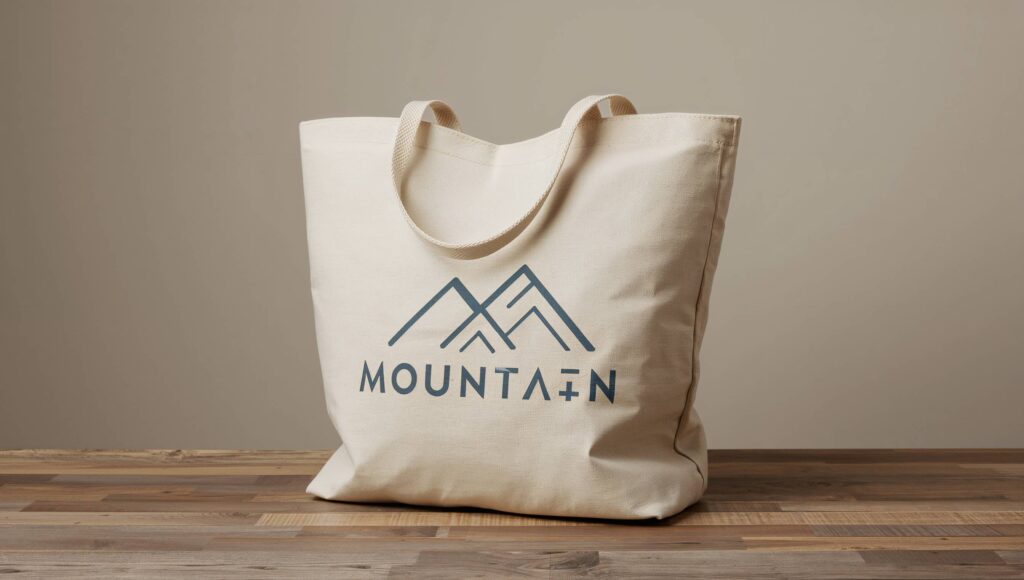
I2V is perfect for animating logos or branding where the design must remain exact.
Step 1: The Input Image
A sleek, modern tote bag with a clean, minimalist mountain logo...
Step 2: The Motion Prompt
The mountain logo on the tote bag subtly animates, with clean lines tracing the peaks. The camera slowly zooms in, focusing on the movement. Audio: A gentle whooshing sound as the lines animate, followed by a soft, satisfying click.
Start/End Frame (S/E) Example
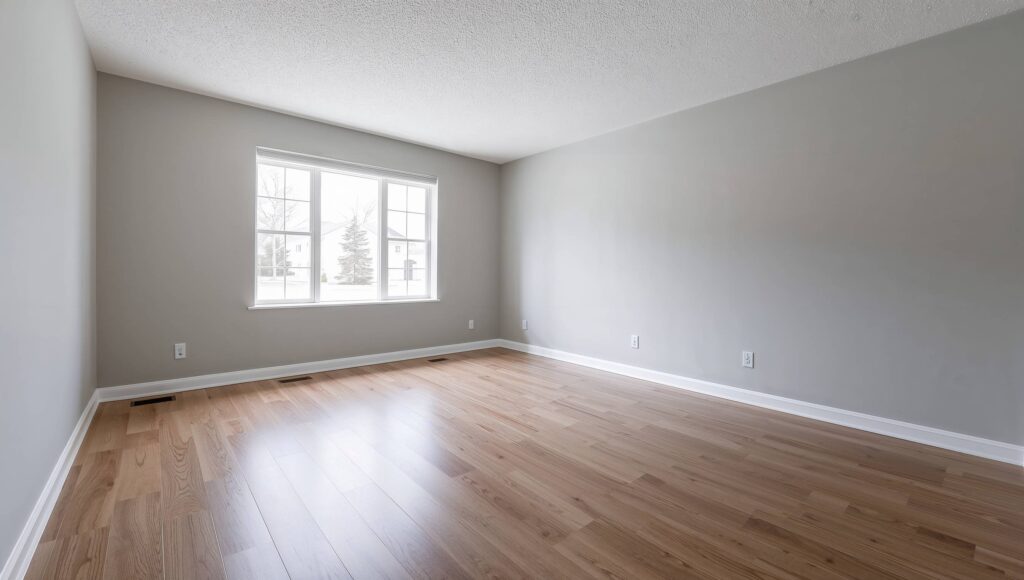
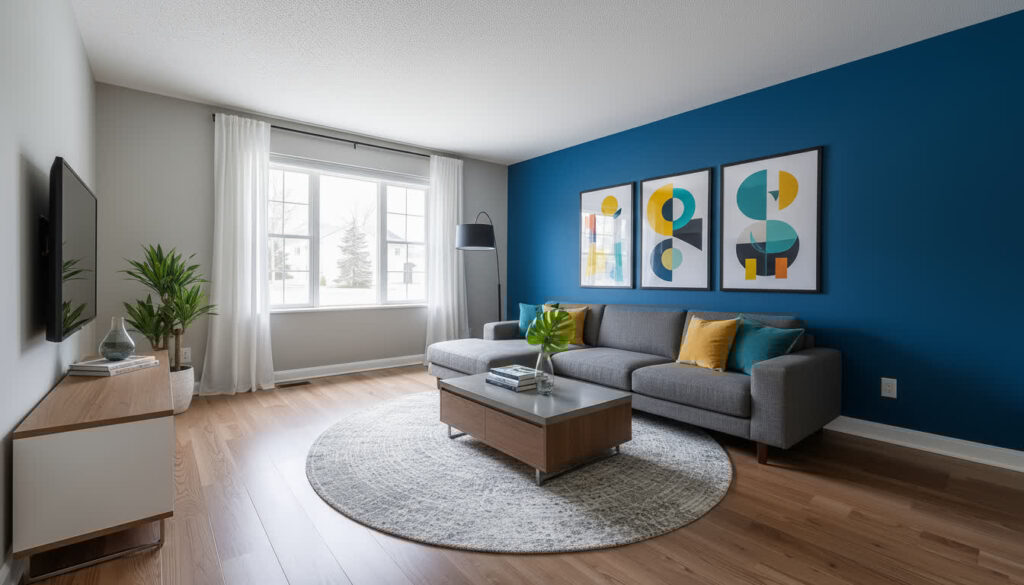
This workflow allows for "magic" transformations or specific storytelling beats where you need to end up in a specific state.
Step 1: Start Frame (Empty Room)
Step 2: End Frame (Furnished Room)
Step 3: The Bridge Prompt
A fast, shimmering wave of energy washes across the room, leaving a trail of sparkling particles in its wake. Over the next seconds, these particles coalesce and elegantly construct the furniture and decorations...
6. Pro-Tips for Optimization
Object Count and Complexity
Veo 3.1 handles crowds better than previous models, but it still has limits.
- Safe Zone: Up to ~15 distinct objects of the same type.
- Danger Zone: Complex crowds with specific, individual interactions.
- Strategy: If you need a specific number (e.g., "Six lanterns"), place that number first in the prompt or emphasized in the subject line.
Example: "Only six lanterns..."
Repetition vs. Variation
Do not spam keywords.
- Bad: "Rain falls. Rain drips. Rain hits ground. Heavy rain." (This creates noise).
- Good: "Cold drizzle falls. Droplets tap against rusted metal. A sheen of water reflects the neon signs." (This creates nuance).
Tone and Style
Write in the Present Tense. Veo 3.1 simulates a real-time feed.
- Instead of "The man will jump," write "The man jumps."
- Describe the feeling visually. Don't just say "scary"; say "Deep shadows conceal the corners, flickering lights create unease."
Conclusion
Mastering Veo 3.1 is about translating your imagination into the specific visual language that the model understands. Start with the core pillars (Subject, Context, Action, Style), experiment with your camera language, and use the advanced I2V and S/E workflows to lock in consistency.
Checklist for every prompt:
- Did I define the subject clearly?
- Is the background/context specified?
- Is there a specific action or movement?
- Did I define the camera angle and lighting?
- Is the audio landscape described?
By ticking these boxes, you move from "generating video" to "directing AI," achieving results that are truly cinematic and controllable.